PDF Reader Pro for Windows Review: My Honest Take
If you're like me and work with PDF files daily, then having a reliable and feature-rich PDF reader for Windows isn't just a convenience—it's essential. I recently had the opportunity to dive into PDF Reader Pro for Windows, and I was genuinely impressed by its range of tools and smooth performance. Whether you're trying to view, annotate, edit, convert, OCR, fill, or sign documents, PDF Reader Pro wraps it all into one intuitive platform.
What stands out immediately is how well-optimized it is for productivity. From split view modes to PDF form filling and document security, it's obvious this isn't just another free PDF viewer. The interface feels modern yet simple enough to navigate even if you’re not tech-savvy. I've used other editors that either crash or overload you with complicated menus. This one just works—and works well.

In this review, I’ll walk you through what makes PDF Reader Pro for Windows a must-have tool, particularly for educators, IT professionals, and product managers looking to streamline their digital workflows. If you're in the market for a GDPR-compliant, reliable solution for managing PDF files, you’ll want to keep reading.
Why PDF Reader Pro is a Must-Have on Windows
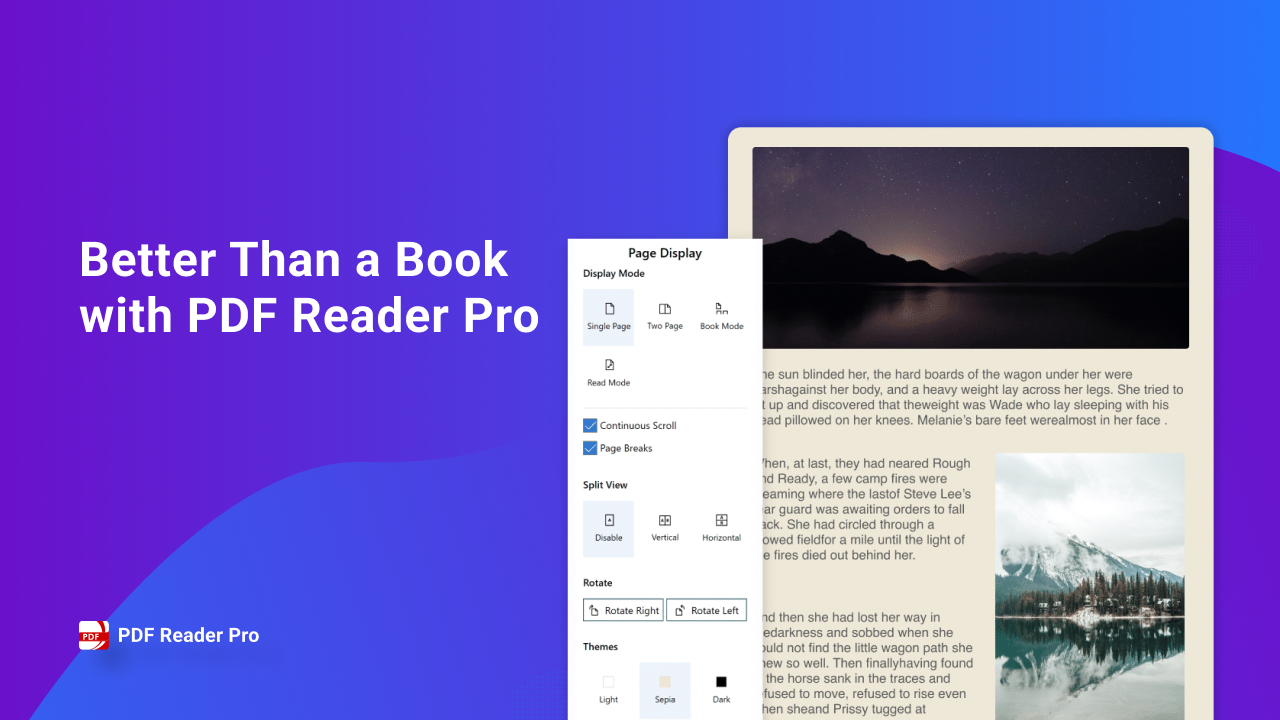
Better Than Reading a Book
Reading PDFs in PDF Reader Pro feels almost like flipping through a real book, thanks to its smooth scrolling and well-thought-out layout. I spend hours reading contracts, reports, and eBooks, so the experience matters. The app’s page-flipping mode and clean viewing interface help reduce eye strain during long reading sessions.
Read in Split View Mode
One standout feature is Split View Mode. This is especially helpful when you're comparing two sections of a lengthy document or referencing two separate PDFs side-by-side. It’s a game-changer for multitasking and cross-referencing.
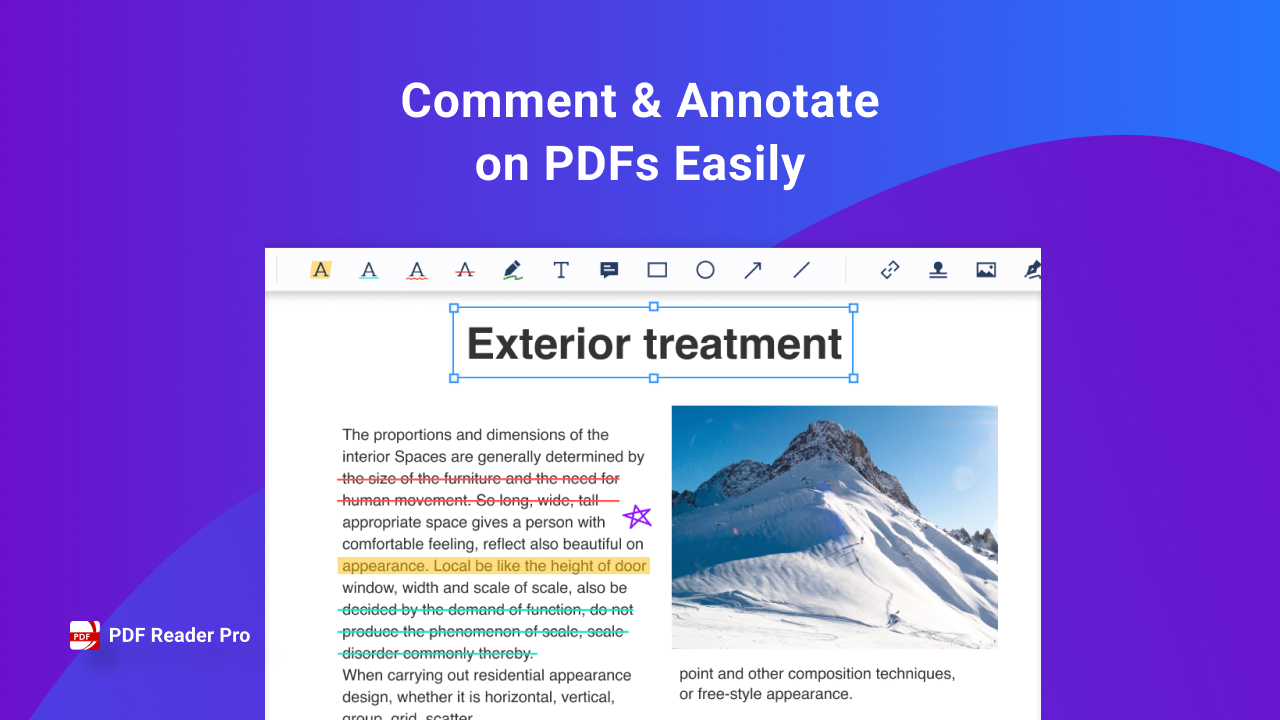
Annotate to Memorize
When I’m reading for work or research, I rely heavily on annotations. PDF Reader Pro provides a wide range of highlighting, underlining, and note-taking tools that allow you to actively engage with your content. This is particularly useful for students or professionals who need to retain information quickly.
Print in One Click
Another time-saving feature: you can print PDFs in one click, with customized settings like page range, orientation, and paper size. It’s fast and dependable—no fussing with multiple print dialogues.
Powerful PDF Annotation Tools
Diverse Tools for PDF Markup
Annotation is where PDF Reader Pro truly excels. You can add comments, drawings, highlighted sections, or even shapes. Whether you're reviewing a team proposal or grading student submissions, these tools help communicate feedback clearly.
Type Text to Take Notes
Taking notes directly on a PDF is effortless. I often type notes in margins or blank areas to quickly summarize points, especially when reviewing legal documents or project guidelines. The text tool is responsive and supports rich formatting.
Create & Insert Stamps
Need to mark a document as “Approved” or “Confidential”? The stamp tool lets you insert preset or custom stamps. It’s ideal for business workflows and document review processes.
Edit PDFs with Ease
Edit PDF Text and Pages
Most PDF readers don’t allow true editing—but PDF Reader Pro does. You can edit text, adjust fonts, and reposition paragraphs right in the document. This is crucial for last-minute tweaks before sending files out.
Split, Merge, and Flatten PDFs
I regularly split large PDFs into chapters or merge multiple reports into a single file. With PDF Reader Pro, this is seamless. Plus, the flatten feature ensures that annotations and form data are locked in, which is great for archiving or final delivery.
Insert Pages
Need to add a cover sheet or appendix? Just insert extra pages wherever needed. This flexibility is invaluable for preparing presentations, portfolios, or legal bundles.
Versatile PDF Conversion Capabilities
Convert Images and Office Files to PDF
I’m often converting JPGs, Word docs, and PowerPoint decks into PDF format for consistency. PDF Reader Pro handles these conversions with high fidelity. You won’t lose formatting or image quality.
OCR for Scanned PDFs
The OCR (Optical Character Recognition) feature is a lifesaver. It transforms scanned or image-based PDFs into searchable, editable documents. I use this regularly to digitize paperwork or extract text from brochures.
Extract Images
Another gem: you can easily extract all embedded images from a PDF. This is super helpful when working with design mockups or saving logos from reports.
Fill and Sign PDFs on the Fly
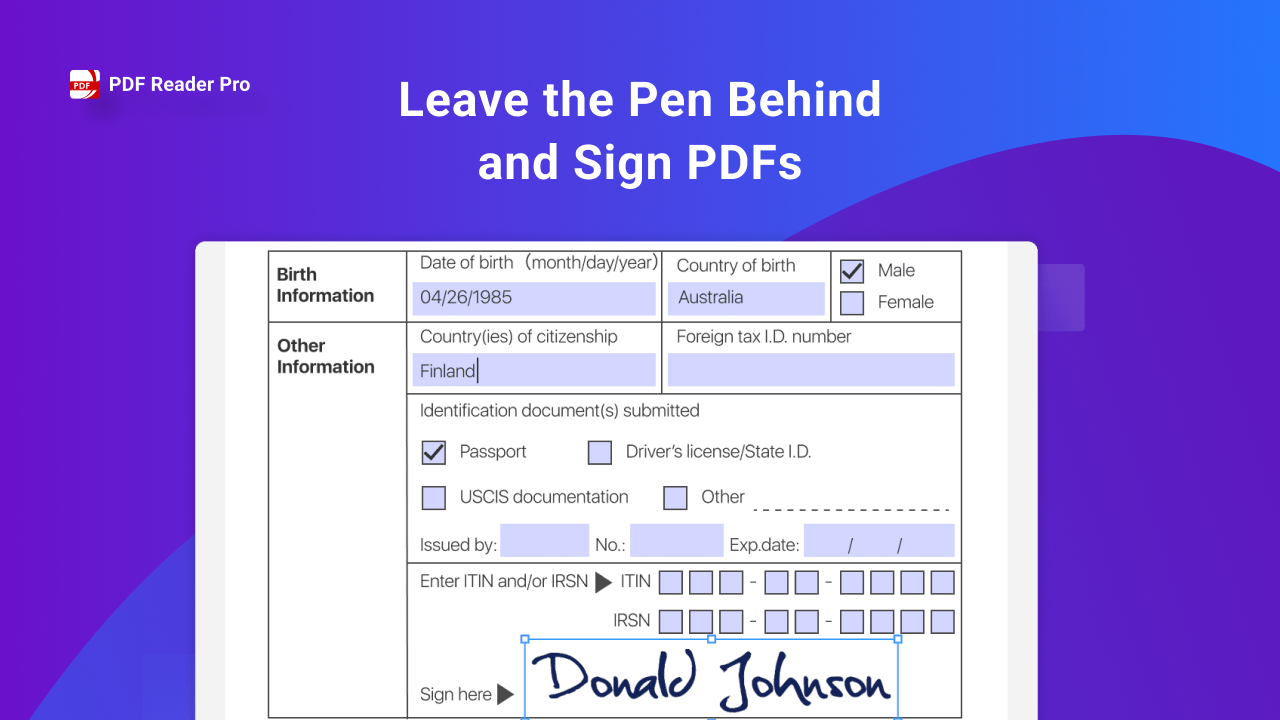
Fill Out Forms Without Printing
I can’t remember the last time I printed a form to fill out by hand. PDF Reader Pro allows you to fill forms directly, whether they’re interactive or static. It even supports dropdown menus and checkboxes.
Remote Signing Made Simple
The signing tools let you insert a digital signature—either drawn, typed, or uploaded as an image. I sign contracts and NDAs this way all the time, and it’s legally binding in most jurisdictions.
Create Fillable Forms
If you manage forms regularly, you’ll love the ability to create your own fillable PDFs. I’ve used it to build custom feedback forms and internal checklists for my team.
Keep Your Documents Secure
Add Watermarks
Protect your content by adding custom watermarks like “Draft,” “Private,” or your company logo. This adds a professional touch while ensuring intellectual property stays safe.
Password Protection & Permissions
You can lock PDFs with passwords or restrict printing, copying, and editing. This is particularly important for businesses dealing with sensitive information or client data.
Final Thoughts: Is PDF Reader Pro for Windows Worth It?
Absolutely. In my experience, PDF Reader Pro delivers a powerful combination of performance, ease of use, and advanced features—all without the bloat you get from some competitors. It’s a reliable all-in-one PDF solution that fits into nearly any workflow.
Whether you're an educator managing class materials, an IT agency processing sensitive documents, or a product manager organizing reports, PDF Reader Pro makes the process smoother and faster. Its GDPR compliance and enterprise-ready tools also give peace of mind from a security standpoint.
If you're looking for a comprehensive PDF tool for Windows that does more than just open files, I highly recommend giving PDF Reader Pro a try.