Graficto Review: The Best Infographic Maker for Non-Designers?
Is Graficto the Ultimate Solution for Creating Stunning Infographics?
Creating professional infographics can be a challenge if you're not a skilled graphic designer. Whether you need visuals for a presentation, blog post, or coursework, designing from scratch takes time and effort. Fortunately, Graficto simplifies the process by providing a vast selection of smart infographic templates, allowing users to create visually appealing graphics in seconds. In this in-depth review, I’ll share my hands-on experience with Graficto and explore whether it’s the right tool for your needs.
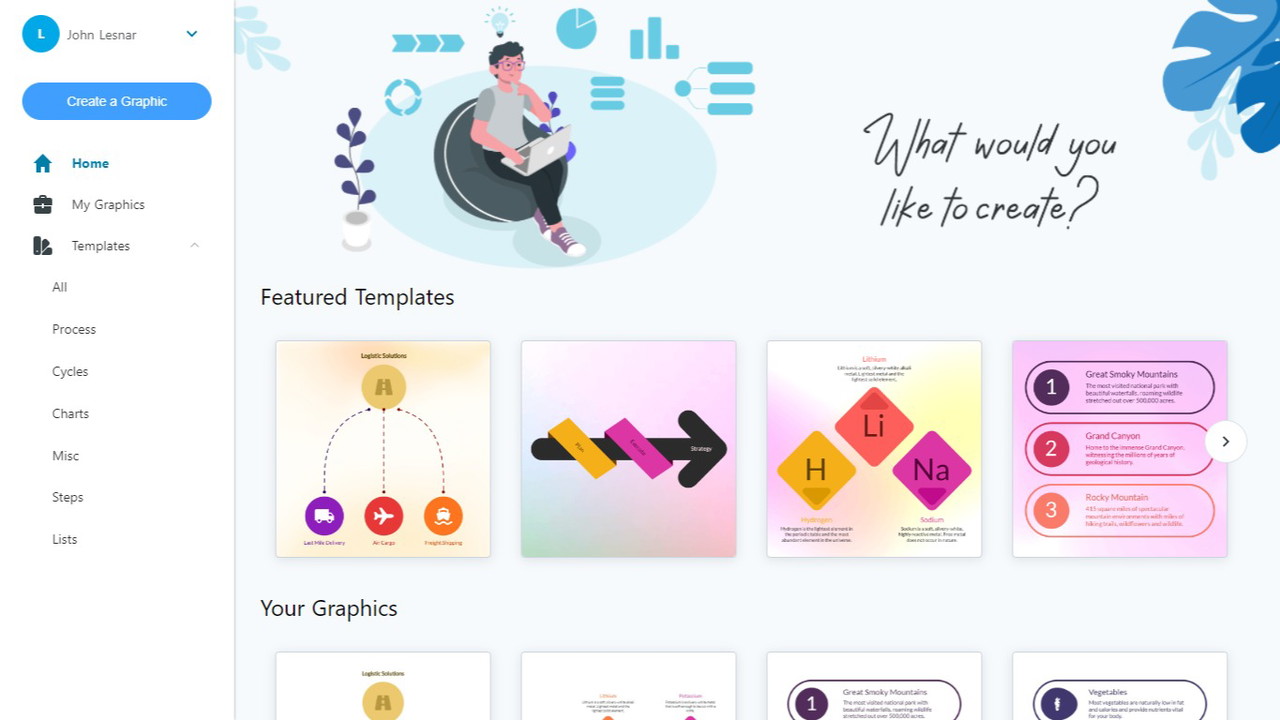

What is Graficto?
Graficto is an easy-to-use infographic and smart visuals creator designed for non-designers. It offers a user-friendly interface, allowing anyone to create stunning visuals without extensive design skills. With its drag-and-drop functionality, you can build professional graphics quickly, focusing solely on your content while Graficto handles the visual aesthetics.
Who is Graficto Best For?
-
Educators: Create engaging lesson materials.
-
Marketers: Develop eye-catching promotional content.
-
Bloggers: Enhance articles with visually appealing data.
-
Business Professionals: Simplify complex ideas in presentations.
Sponsored
-
Students: Improve coursework with well-designed infographics.
Key Features of Graficto
Extensive Infographic Templates
Graficto comes with hundreds of professionally designed templates for different categories:
-
Lists
Sponsored
-
Processes
-
Cycles
-
Charts
-
Diagrams
Sponsored
With pre-made designs, you don’t have to worry about layout or alignment – just select a template and start adding your content.
Smart Visual Adjustments
One of the standout features of Graficto is its dynamic editing system. When you modify text, remove items, or add new elements, the visual automatically adjusts without requiring manual repositioning. This saves time and ensures that your final design looks polished.
Customization Options
Although Graficto provides pre-set designs, you can still tailor your graphics to match your brand or preference:
-
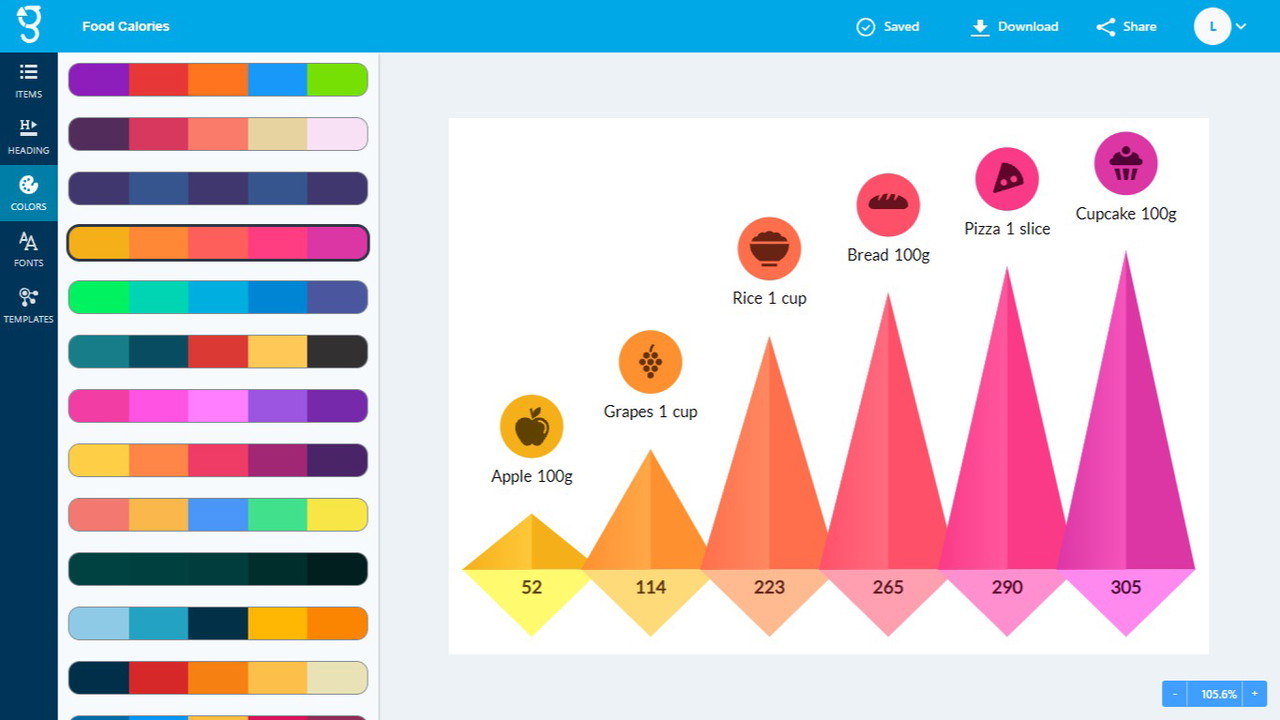
Color Palettes: Choose from a variety of carefully curated color schemes.
Sponsored
-
Font Selection: Pick from multiple typography styles.
-
Icons & Elements: Swap out icons to fit your message.
Applying these changes takes just one click, making customization seamless and efficient.
High-Resolution Export & Sharing
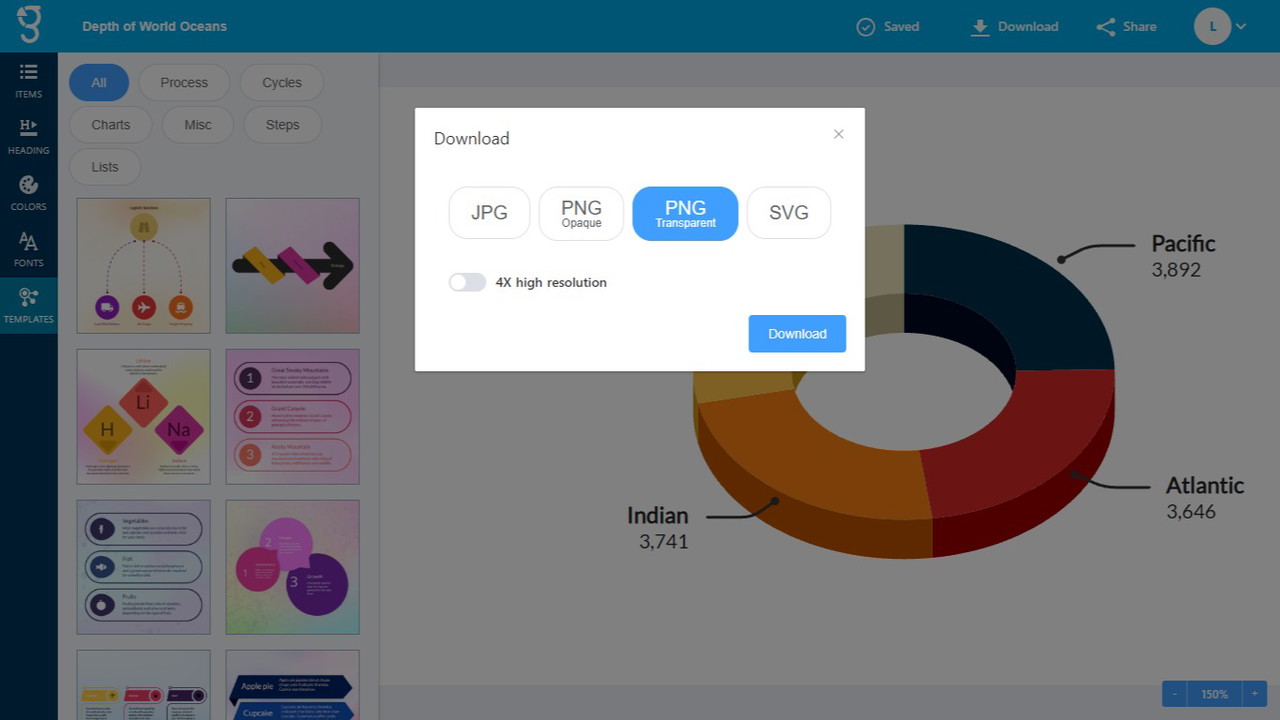
Once your infographic is ready, you can export it in high-resolution image and vector formats. Additionally, Graficto provides a public URL sharing option, making it easy to embed or share your designs on social media platforms like Instagram and LinkedIn.
Graficto vs. Canva: How Does It Compare?
Many people compare Graficto to Canva, but they serve slightly different purposes:
Graficto vs. Canva
Graficto
-
Infographic Specialization: Yes
Sponsored
-
Auto-Adjusting Elements: Yes
-
Ready-Made Templates: Yes (Infographics-Focused)
-
Learning Curve: Easy
-
AI Features: Yes
-
Export Options: Image & Vector
Canva
-
Infographic Specialization: No (General Graphic Design)
-
Auto-Adjusting Elements: No
-
Ready-Made Templates: Yes (All-Purpose)
-
Learning Curve: Moderate
-
AI Features: No
-
Export Options: Image & PDF
While Canva is a broader graphic design tool, Graficto excels in infographic creation, making it a great option for those who want to quickly generate data-driven visuals.
How to Use Graficto in 3 Simple Steps
Step 1: Choose a Template
Browse through Graficto’s extensive library and pick a template that best fits your content.
Step 2: Add and Edit Content
Replace the placeholder text with your information. Graficto’s smart technology will automatically adjust the layout as you edit.
Step 3: Customize & Export
Modify the color scheme, fonts, and icons to match your brand. Once satisfied, export your design or share it with a public link.
Pros & Cons of Graficto
Pros:
User-Friendly Interface – Perfect for beginners. ✅ Hundreds of Templates – Covers all infographic styles. ✅ Smart Auto-Adjusting Elements – No manual resizing needed. One-Click Customization – Easily change colors, fonts, and icons. ✅ High-Quality Export – Save in vector and image formats. ✅ Affordable Lifetime Deal – Cost-effective alternative to subscription-based tools.
Cons:
Limited to Infographics – Not ideal for general graphic design. ❌ No Collaboration Features – Unlike Canva, it lacks real-time team editing. ❌ Basic AI Integration – No advanced AI-generated design suggestions.
Final Verdict: Should You Buy Graficto?
After testing Graficto, I can confidently say that it’s a powerful tool for infographic creation. If you frequently need data visualizations, process charts, or list-based graphics, this tool will save you hours of design work. The smart editing system makes adjustments effortless, and the high-resolution exports ensure professional-quality visuals.
However, if you’re looking for a comprehensive graphic design tool with advanced editing or team collaboration features, Canva might be a better fit. But for infographics? Graficto is a game-changer.
If you’re ready to upgrade your content with stunning visuals, check out Graficto’s lifetime premium deal and start creating today!